
Orders & shipping
This is the screen your packing team lives in. It turns "357 orders exist" into "these ten need to leave today, in this order, and here is the label" — and then makes sure the right thing went in the box.
Two order screens, two jobs
| Screen | Use it when |
|---|---|
Orders/orders |
You want the money view — revenue, profit and margin per order, fee status, filters by data completeness. This is the analytical list. |
Order Processing/fulfillment |
You want the work view — what to arrange, pick, label, pack and hand to the courier today. This is the operational list. |
The sidebar entry is called Order Processing but the address is
/fulfillment, and everything under it lives at
/fulfillment/…. Worth knowing when you bookmark or share a link.
Today's queue
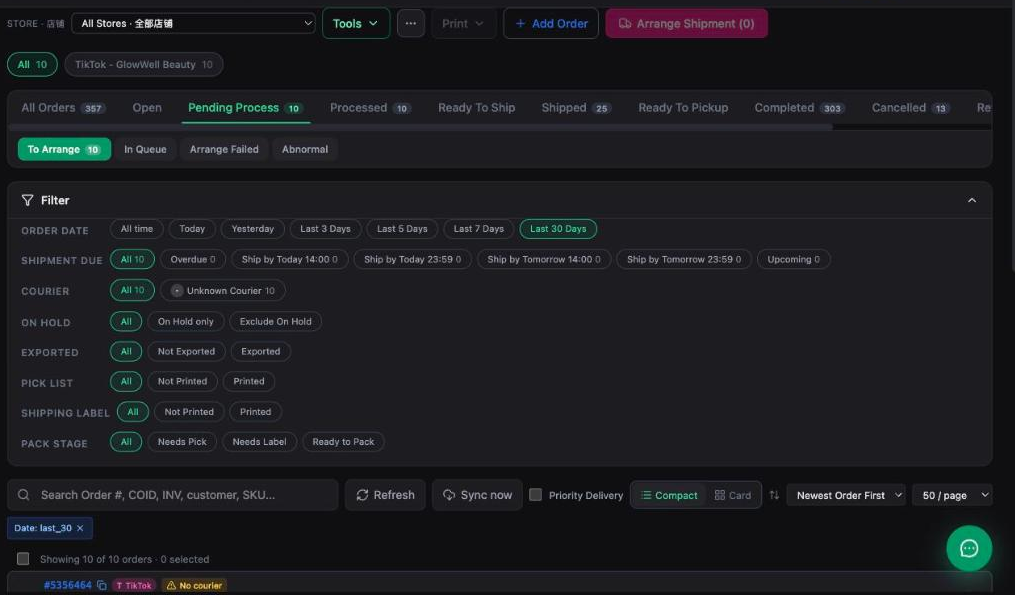
Order Processing in the sidebar.
 1
2
3
4
1
2
3
4
Work the pipeline left to right
All Orders → Open → Pending Process → Processed → Ready To Ship → Shipped → Ready To Pickup → Completed, with Cancelled and returns at the end. The counts on each tab are the whole point: you are looking for the stages that are backing up.
SHIPMENT DUE is the one filter that matters
It is not a date filter, it is a deadline filter: Overdue · Ship by Today 14:00 · Ship by Today 23:59 · Ship by Tomorrow 14:00 · Ship by Tomorrow 23:59 · Upcoming.
Clear Overdue first, then Ship by Today 14:00, then the 23:59 bucket. Late shipment rate is a platform metric that costs you traffic — this filter exists so nobody has to work that out from a spreadsheet at 3pm.
Arrange the shipment
Select orders, then Arrange Shipment in the top bar (it shows the selected count). Orders that fail to get a courier land in Arrange Failed, and the ones the platform returned something odd for land in Abnormal. Both are small buckets that must be emptied daily — an order sitting in Arrange Failed is invisible to your packers.
Order rows can carry a ⚠ No courier badge and the COURIER filter has an Unknown Courier bucket. Those orders cannot be labelled. Fix them before printing, or you will pick stock for a parcel you cannot send.
Pick list and shipping labels
The filter panel tracks printing state separately for each document, because they are two different jobs done by two different people:
| Filter | What it tracks |
|---|---|
| PICK LIST — Not Printed / Printed | The warehouse document: what to take off the shelf. |
| SHIPPING LABEL — Not Printed / Printed | The courier's AWB. Printed but not packed is the classic stuck state. |
| PACK STAGE — Needs Pick / Needs Label / Ready to Pack | Where each order actually is in the physical process. |
| EXPORTED — Not Exported / Exported | Whether the order has been handed to an external system. |
| ON HOLD | Orders you deliberately parked. Exclude them so they stop cluttering the queue. |
Printing itself is under Print in the top bar; bulk actions live under Tools. + Add Order creates a manual order for a sale that did not come through a marketplace.
The search box takes Order #, COID, INV, customer or SKU. When a customer messages asking where their parcel is, paste whatever they gave you — it will match on one of those.
Pack Assistant — scan so you cannot pack the wrong thing
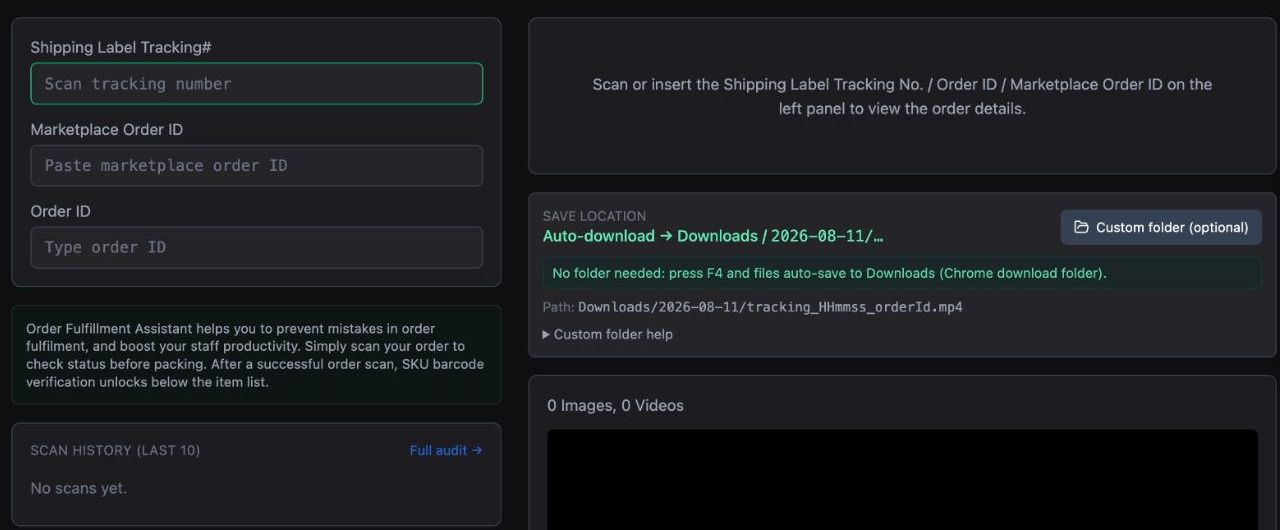
Pack Assistant in the sidebar
(/fulfillment/pack-assistant).
Wrong-item shipments cost you twice: the return, and the review. This screen makes the scan the gate.
 1
2
3
1
2
3
The flow, as the screen describes it:
- Scan the order. The order's details and status appear on the right — before you pack, so a cancelled or on-hold order stops you here.
- After a successful order scan, SKU barcode verification unlocks the item list below.
- Scan each item. The list confirms as you go.
It checks status before packing. That single ordering is what prevents the most expensive mistake in the warehouse — picking and shipping an order that was cancelled an hour ago.
Scan history (last 10) sits bottom-left with a Full audit → link — that is
Pack Audit (/fulfillment/pack-assistant/audit), where you review who
scanned what and when.
ParcelGuard — video proof of what went in the box
ParcelGuard in the sidebar
(/fulfillment/parcel-guard).
For the customer who says the parcel arrived empty. Configure the webcam here, then pack in Pack Assistant — every scan is logged immediately and the recording is saved with the order.

The browser must be allowed camera access, and recordings save to this computer — check the save path on the Pack Assistant screen. A packing station whose camera permission was never granted produces a log full of scan rows and no video.
Carrier Manifest (/fulfillment/manifests) is the end of the line: the
handover document you generate when the courier arrives.
An end-of-day check
- Overdue is zero.
- Arrange Failed and Abnormal are empty — nothing is stuck invisibly.
- No orders left with ⚠ No courier.
- Shipping label printed but still Needs Pack — that gap is tomorrow's late shipment.
Troubleshooting
An order is in Arrange Failed
The courier booking was rejected — usually a missing or malformed address, a weight/dimension the service will not take, or a courier account issue on the platform side. Fix the order on the marketplace, then Sync now and arrange again.
Orders are not appearing at all
Check the store filter at the top and the ORDER DATE filter — it defaults to a recent window (Last 30 Days), so an older order will not be in the list. Then check sync freshness on the dashboard.
The item barcode will not scan in Pack Assistant
SKU verification only unlocks after a successful order scan — if the item list is still locked, the order scan did not land. Also make sure the barcode you are scanning matches the SKU on the listing; a supplier barcode that was never mapped will not match. See Inventory & SKUs.
ParcelGuard saved no video
Camera permission is per-browser and per-site, and it is the usual cause. Grant it in the browser's site settings and reload. Then confirm the save location on the Pack Assistant screen points somewhere that still exists on that machine.
Was this page helpful?