
1 · Create your account
Three minutes, no credit card. You end up with your own workspace, on a free full-feature trial, sitting on the checklist that drives the rest of this guide.
Before you start
Open the sign-up page
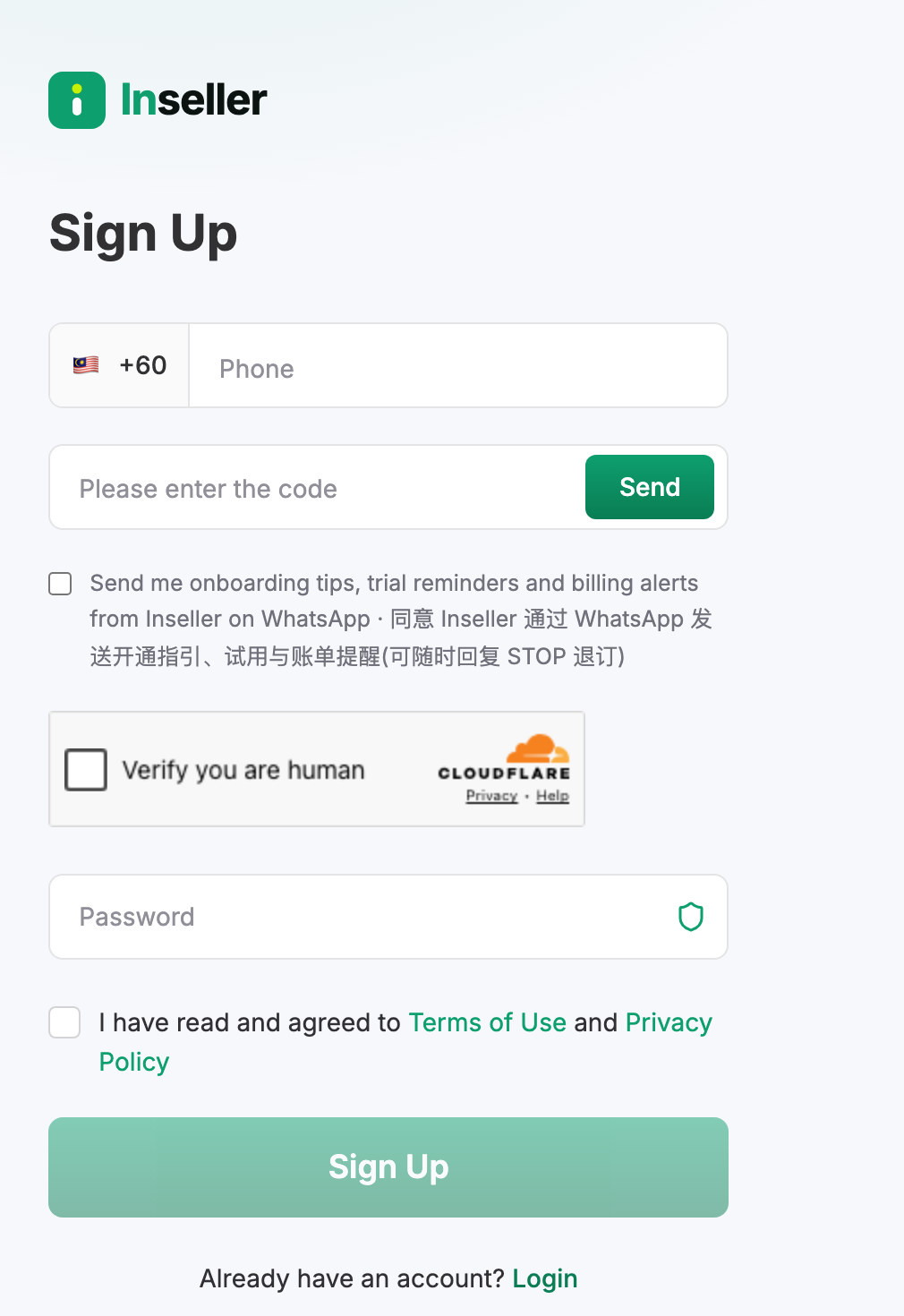
Go to www.inseller.my/register, or click Sign up free on any page of the marketing site. The heading reads Sign Up.
Already have an account and just need to sign in? That is www.inseller.my/login — it accepts either your phone number or your email.
Enter your phone and get the SMS code
- Type your mobile number in the Phone field, with the country prefix selected.
- Click the send button next to the verification code field. You should see "Verification code sent to your phone."
- Type the code from the SMS (4–8 digits).
 1
2
3
4
5
1
2
3
4
5
The resend button has a 60-second cooldown. If nothing arrives, wait out the minute rather than reloading the page — a reload clears the form.
There is an optional tick box for onboarding tips, trial reminders and billing alerts over WhatsApp. It is never pre-ticked, and you can reply STOP later to unsubscribe.
Set a password and agree to the terms
Back on the same form, working down from ③ in the screenshot above:
- Enter a Password — at least 8 characters (③).
- Tick Verify you are human if the Cloudflare box is showing.
- Tick I have read and agreed to Terms of Use and Privacy Policy (④).
- Click Sign Up (⑤).
Sign Up renders pale green until the terms box is ticked. If clicking it does nothing, that checkbox is the reason nine times out of ten — it sits directly above the button and is easy to scroll past.
Inseller verifies you by SMS, not by email. Nothing is waiting in your inbox and there is no confirmation link to click — if a guide elsewhere tells you to check your email, it is out of date.
Your workspace and your trial
Signing up creates everything in one go:
- A workspace named after your business, with its own URL slug — every screen lives under
/<your-workspace>/…. - You as the owner, with full access.
- A free trial on full Plus features, started automatically. No card, nothing to cancel — when it ends you drop to Free and your data stays.
You are then dropped straight onto the onboarding page for the new workspace.
A shop can only report into one workspace. If a colleague already signed the company up, ask them to invite you (Settings → Team) instead of registering a second workspace — otherwise you will hit "shop already connected" in step 2.
Work the onboarding checklist
The welcome screen reads "Three steps to real numbers" — "Connect a store, connect your ads, price your SKUs. Your dashboard is already open — none of these block you, they make what is on it true."
| Checklist step | Covered in |
|---|---|
| Connect your store | Guide 2 — Connect your store |
| Connect your ad account | Guide 3 — Connect your ads |
| Import SKU costs | Guide 4 — Set your SKU costs |
Under those sits a collapsed "Fine-tune your numbers — optional" section: platform fee rates, P&L cost assumptions, Telegram notifications, business targets, safety stock. Leave it for later; it sharpens numbers rather than creating them.
A small Getting started card follows you around the bottom-right of the app until the required steps are done. You can drag it out of the way, and it disappears on its own once setup is complete.
Choosing a plan (later, not now)
Do not pay on day one. Finish the trial setup, look at your real numbers, then decide. Plans
live at Settings›My Account
or on the Upgrade page.
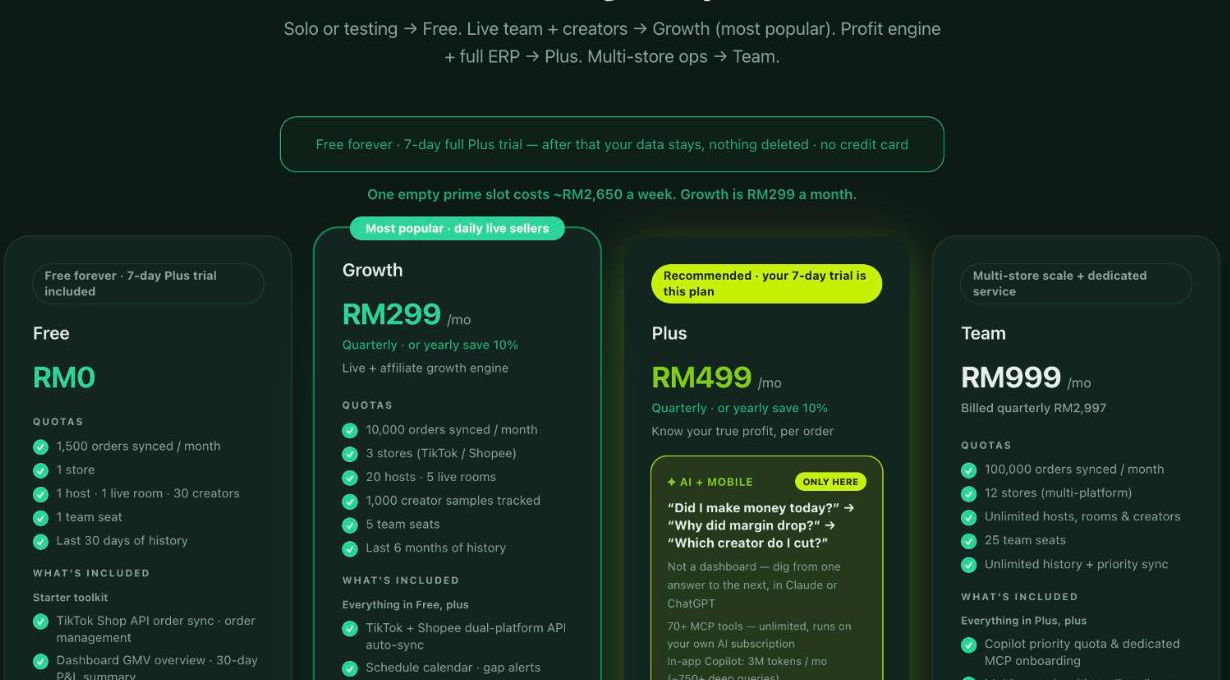
Checkout is intentionally gated: until the required onboarding steps are done the button reads "Complete setup (n%)". Inseller would rather you saw your real numbers before paying for them.
Verify it worked
- The top-left of the app shows your workspace name, and the URL contains your workspace slug.
- The onboarding page shows "0 of 3 steps done".
- Signing out and back in at /login with your phone number works.
Signing in from now on
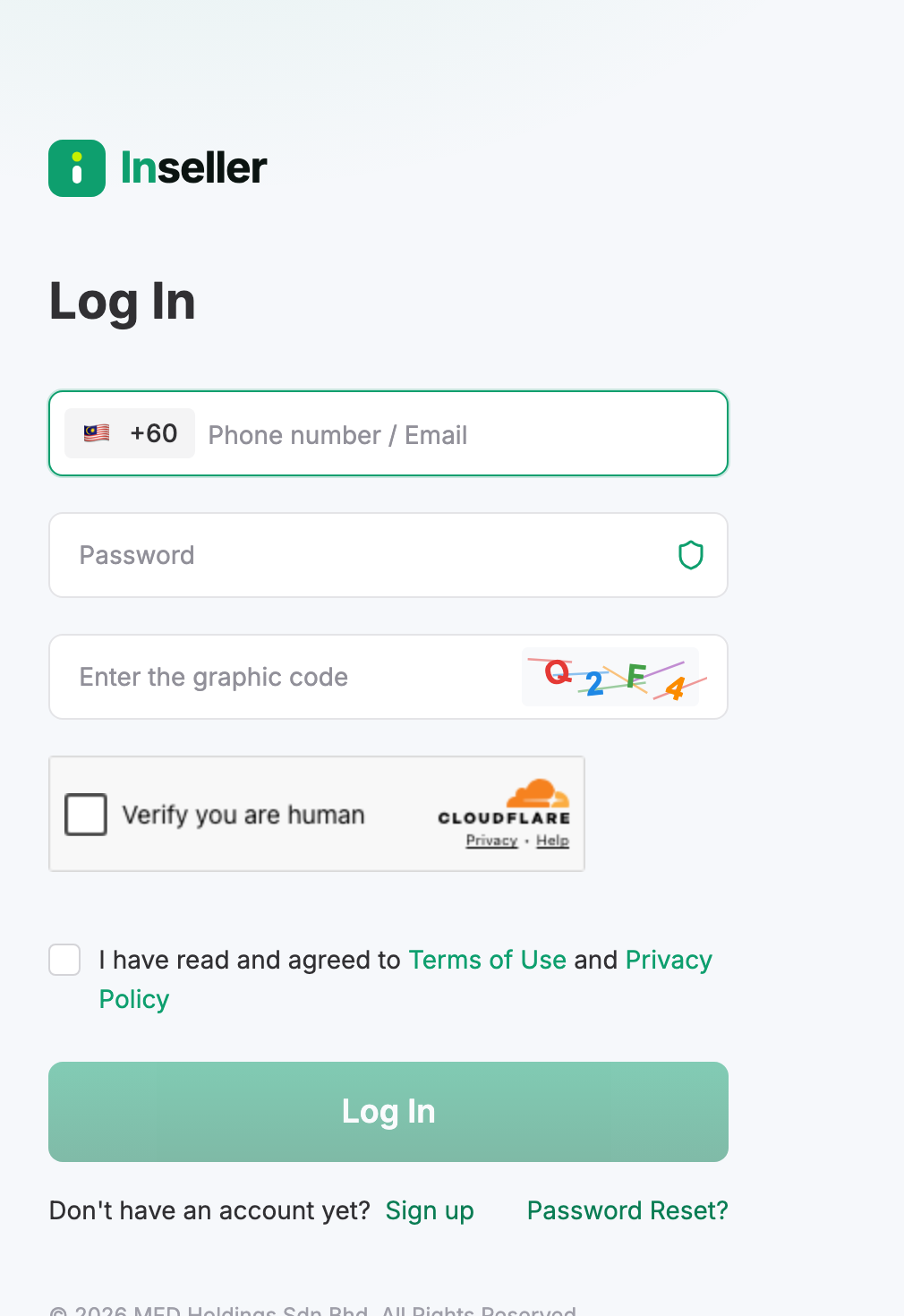
Once the account exists you use www.inseller.my/login, not the sign-up page. It accepts either your phone number or your email in the first field.
 1
2
3
1
2
3
Login has the same terms checkbox as sign-up, and the Log In button stays pale until it is ticked.
Troubleshooting
The SMS code never arrives
Check the number and prefix first, then wait out the 60-second cooldown and resend once. Malaysian carriers occasionally delay OTP by a few minutes. If two attempts fail, use the contact form on Help & Support and we will get you in manually.
"Password is not allowed"
Inseller checks new passwords against known breach lists. A password that appears in a public breach is rejected even if it meets the length rule. Pick something you have never used elsewhere.
The Sign Up button stays greyed out
The terms tick box is not ticked, or the anti-bot check hasn't finished loading. Scroll down — it sits just above the button.
After logging in I see "No workspace yet"
Your account exists but isn't attached to a workspace — usually because someone invited you and the invite hasn't been accepted, or you signed in with a different phone number than the one that was invited. Ask your admin to re-send the invite from Settings → Team.
I'm in more than one workspace
You will land on Choose a workspace to continue at each login, showing each workspace with its plan and your role. Pick one; you can switch any time.
I forgot my password
Use Password Reset? on the login page. You can reset either by email link or by phone OTP — the phone route is faster.
Was this page helpful?